Blog
Is It Safe to Leave a Time Machine Drive Connected While Your Mac Sleeps?
When it is safe to leave a Time Machine drive connected, when to eject it first, and how to avoid interrupted backups during Mac sleep.
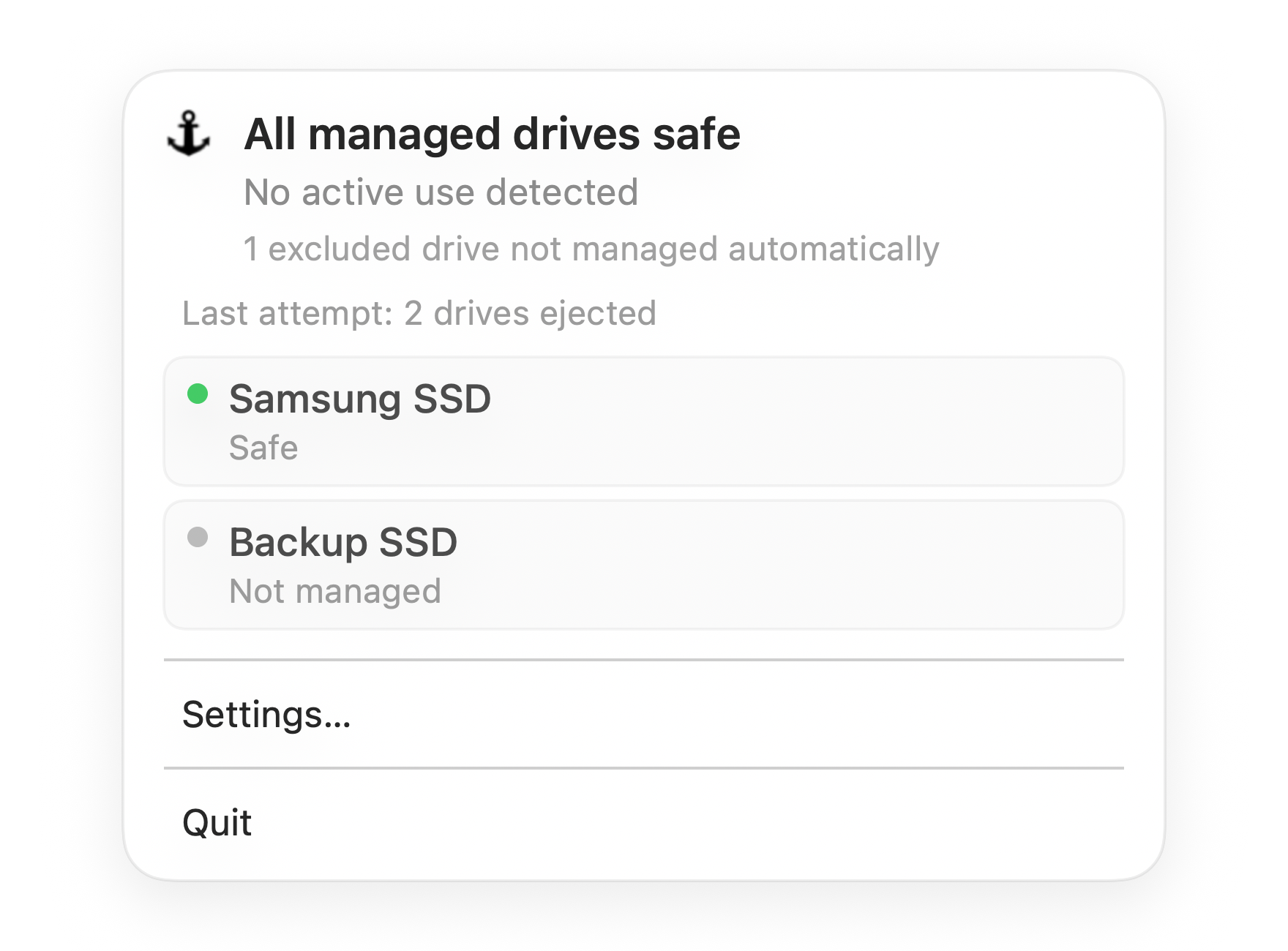
Default state
All managed drives safe
Everything Dockhandy is watching is ready. You can close your Mac with confidence.
The short answer
Yes, it can be safe to leave a Time Machine drive connected while your Mac sleeps. Time Machine is designed for regular, background backups, and many desk setups keep a backup drive connected most of the time.
The risk is not "drive connected during sleep" by itself. The risky case is sleep or power loss while the backup drive is actively being written to, especially through a dock, hub, loose cable, or bus-powered enclosure.
If the drive is idle and the connection is stable, sleeping with it connected is usually fine. If Time Machine is backing up, verifying, cleaning up old snapshots, or reconnecting through a flaky hub, ejecting or waiting is safer.
Why Time Machine drives are a special case
A project SSD may be used for a few files at a time. A Time Machine drive is different. It is a system backup volume, and macOS may write to it without you manually opening anything.
Time Machine can be active when:
- A scheduled backup starts in the background.
- The Mac reconnects to a drive after being away.
- macOS is preparing, thinning, or verifying backups.
- A large local change triggers a larger backup than usual.
- You manually clicked Back Up Now and forgot it was still running.
That background behavior is the point of Time Machine. It is also why a backup drive can be busy at the exact moment you are ready to close the lid.
What can go wrong during sleep
A backup can be interrupted
If the Mac sleeps while Time Machine is writing, the current backup may be incomplete. Time Machine can often recover on the next run, but repeated interruption is not a good operating pattern for your only backup.
macOS may show "Disk Not Ejected Properly"
This means the drive disappeared before macOS completed a clean unmount. It can happen when the Mac sleeps, when a dock loses power, or when the drive disconnects during wake.
The drive may not remount cleanly after wake
Some bus-powered drives and USB-C docks are slow to come back after sleep. Finder may not show the volume until you unplug and reconnect it, or the backup may pause until the drive is available again.
Disk Utility may need to repair the volume
Modern file systems are resilient, but interrupted writes can still leave a volume needing repair. If Disk Utility First Aid reports errors, back up important data elsewhere before continuing to rely on that drive.
When leaving it connected is reasonable
Leaving a Time Machine drive connected is usually reasonable when:
- The drive is connected directly to the Mac or through a stable powered dock.
- No backup is currently running.
- You are not about to unplug the dock or power source.
- The drive has not shown repeated disconnect warnings.
- Disk Utility reports the volume is healthy.
This is the normal desk setup: MacBook, monitor, power, and backup drive connected while you work. The drive stays available, Time Machine runs when needed, and you do not have to remember to plug it in.
When you should eject or wait
Eject or wait before sleep when:
- Time Machine says a backup is in progress.
- You just connected the drive after several days away.
- The backup drive is connected through a small bus-powered hub.
- You are unplugging the whole dock to leave.
- You have seen repeated warnings after closing the lid.
- The drive contains your only backup of important work.
The phrase "only backup" matters. If this drive is the only place a file exists, it is not really a backup. Keep at least one additional copy of important data.
A practical pre-sleep check for Time Machine
Before closing a MacBook with a Time Machine drive attached:
- Check Time Machine status. Look in the menu bar or System Settings. If a backup is running, wait for it to finish.
- Avoid unplugging a dock before ejecting. If the backup drive is on a dock you plan to disconnect, eject the drive first.
- Give recent backups a moment. If Time Machine just completed, wait briefly before removing hardware.
- Run First Aid after repeated warnings. One warning may be harmless. A repeated pattern deserves a health check.
- Use a stable cable and power path. Backup drives should not depend on a loose adapter chain.
This is not a long checklist, but it is easy to skip when you are packing up.
Should you turn off Time Machine before sleep?
Usually no. Turning off Time Machine to avoid sleep warnings solves the wrong problem. It reduces backup coverage and makes it easier to forget backups entirely.
The better fix is to keep Time Machine enabled, make the connection stable, and avoid sleeping or unplugging while a backup is active.
If a specific drive, enclosure, or dock repeatedly causes warnings, replace or simplify that hardware path. Backup reliability depends as much on the physical connection as on the software.
How Dockhandy helps with this specific workflow
The difficult part is not understanding Time Machine. It is remembering to check it at the moment you are about to close your Mac.
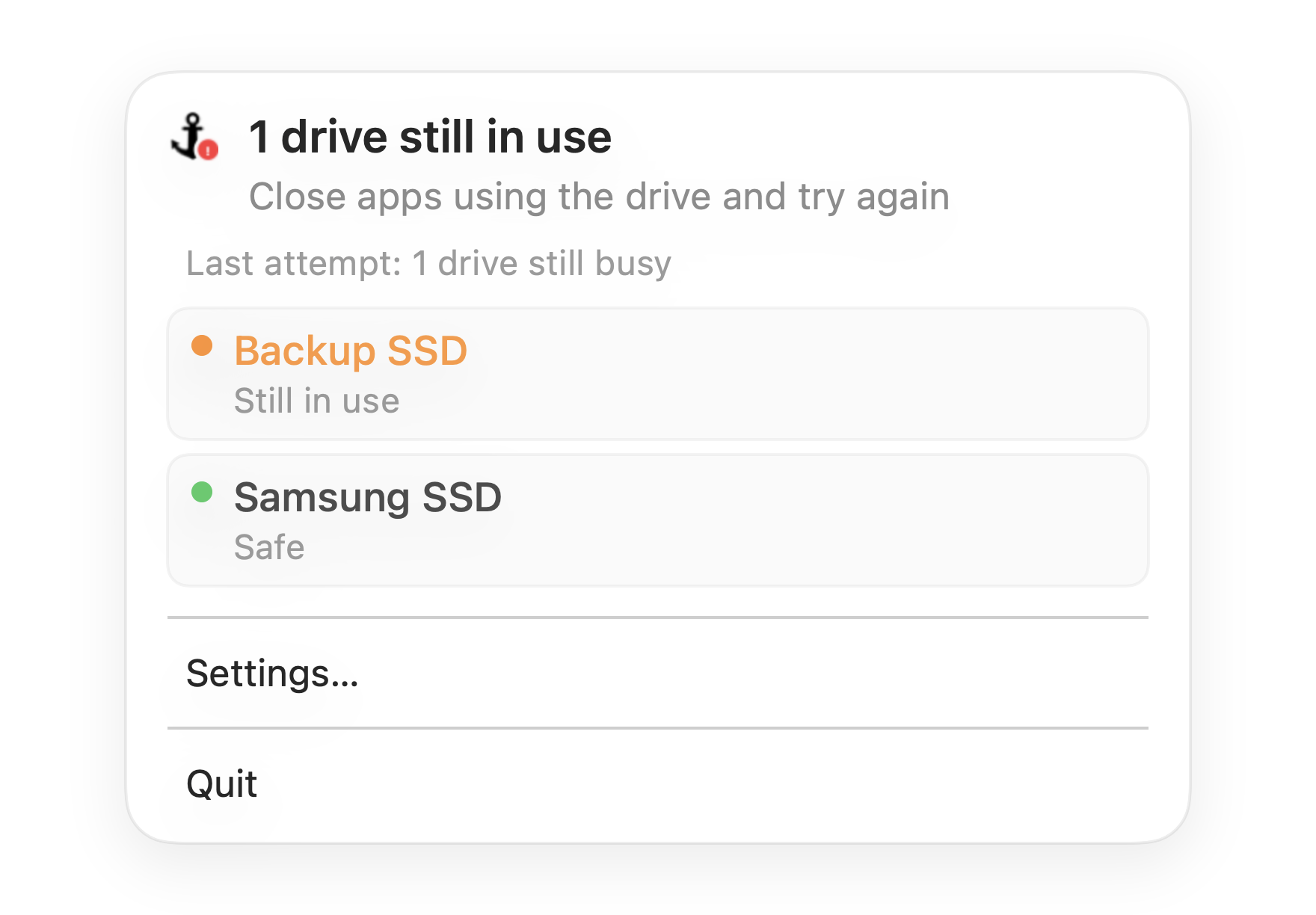
Dockhandy monitors selected external drives and shows whether they are safe before sleep. For a Time Machine setup, that means you can see when a backup drive still needs attention instead of discovering the problem later through a warning.
Dockhandy does not replace Time Machine, and it does not ask you to manage backups manually. It gives you a clear pre-sleep signal for the drives that matter, so a background backup does not become an accidental disconnect.
Bottom line
Leaving a Time Machine drive connected is normal. Leaving it connected while it is busy, then closing the lid or unplugging a dock, is where risk enters.
If the drive is idle and stable, sleep is usually fine. If a backup is active or your setup has a history of disconnect warnings, wait or eject first. The safer workflow is not complicated. It just needs to be visible at the right time.