Blog
How to Safely Eject External Drives Before Your Mac Sleeps
A practical workflow for avoiding unsafe external drive disconnects when closing a MacBook, using Time Machine, or working through a USB-C dock.
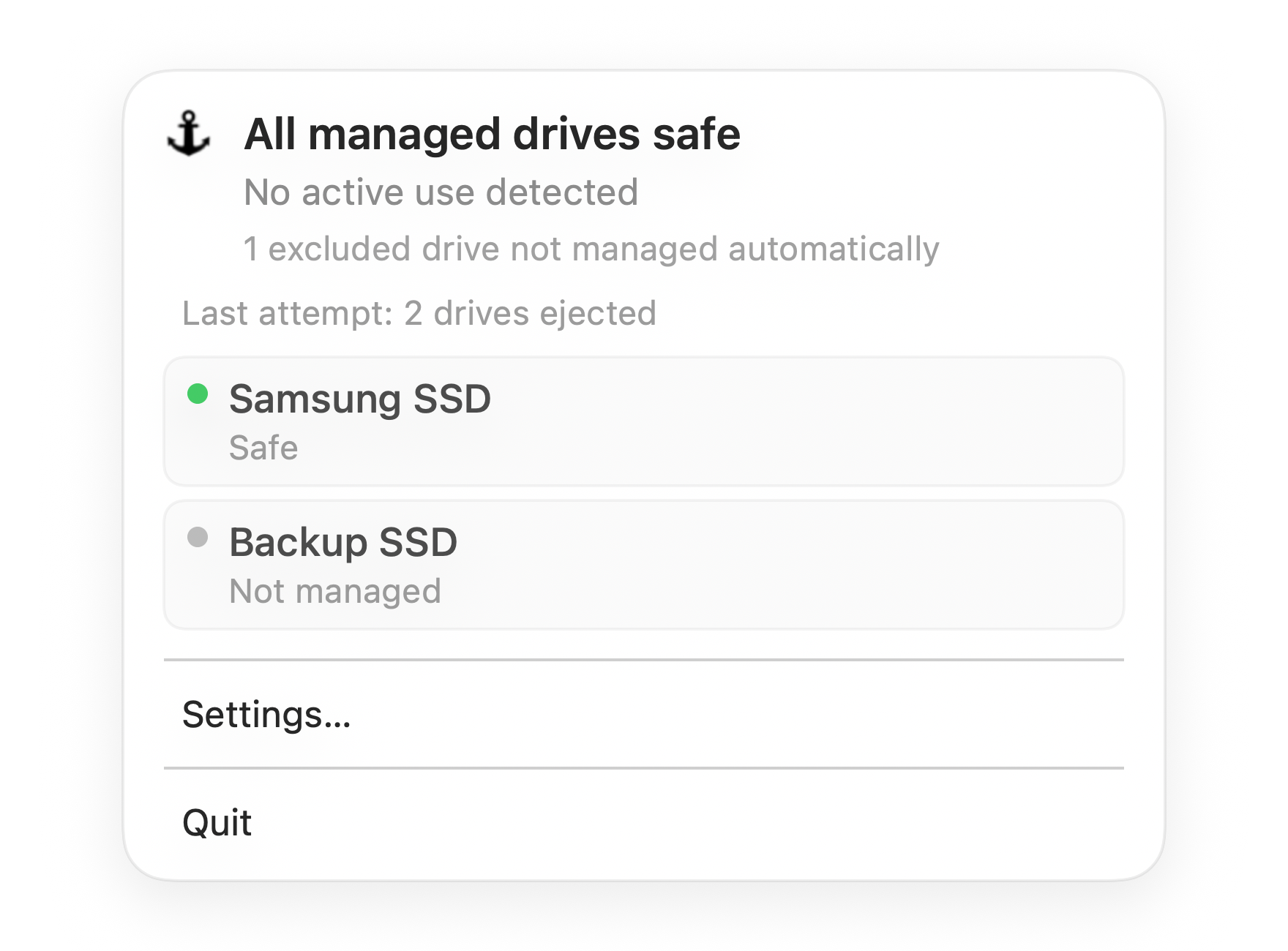
Default state
All managed drives safe
Everything Dockhandy is watching is ready. You can close your Mac with confidence.
The risky moment is usually the last ten seconds
External drive problems rarely happen while you are paying attention to the drive. They happen at the end of a session: you close the MacBook, unplug a USB-C dock, or put the laptop in your bag while a drive is still mounted.
macOS may show "Disk Not Ejected Properly" the next time you wake the Mac. That message means the drive disappeared before macOS completed a clean unmount.
The safest habit is simple: make sure external drives are either idle and intentionally left connected, or cleanly ejected before the Mac sleeps.
What sleep changes for external drives
When a Mac enters sleep, the system changes power state, not just screen state. Apps receive sleep notifications. Background services get a short window to pause. USB and Thunderbolt devices may lose power or re-enumerate later during wake.
If an external drive is mounted but idle, that usually goes fine. If it is actively writing, backing up, indexing, or held open by an app, the timing can be messy. A clean eject removes that uncertainty because it tells macOS to finish outstanding work before the connection is interrupted.
The safe pre-sleep workflow
Use this workflow when you are about to close your MacBook or disconnect a dock.
1. Check active file work
Look for obvious operations first:
- Finder copy or move progress
- Archive creation or extraction
- Photo, video, or audio export
- App save, render, or project sync
- Terminal commands writing to the mounted volume
If a progress window has just disappeared, wait a few extra seconds. Some writes continue briefly after the visible progress bar is gone.
2. Check backup and indexing activity
Time Machine and Spotlight are easy to miss. A drive can look quiet while macOS is still touching it.
For Time Machine, check the menu bar status or System Settings before sleep. If a backup is in progress, let it finish or stop it cleanly before ejecting the backup drive.
For newly connected or heavily changed drives, Spotlight indexing can continue in the background. This is most common after importing many files or connecting a drive that has not been mounted recently.
3. Close apps that opened files on the drive
Preview, Quick Look, design tools, code editors, media players, DAWs, virtual machines, and terminal sessions can all keep file handles open. Close the document or quit the app if you do not need it.
If eject fails with a "disk is in use" message, this is usually why.
4. Eject in Finder and wait for confirmation
Open Finder, find the drive under Locations, and click the eject icon. The important part is not the click. The important part is waiting until the drive disappears from Finder.
If you have desktop drive icons enabled, you can also Control-click the icon and choose Eject. Selecting the drive and pressing Command-E does the same thing.
5. Disconnect hardware only after volumes are gone
If several drives are attached through one dock, eject each mounted volume before unplugging the dock. Disconnecting the dock first is equivalent to yanking every drive at once.
For a bus-powered portable SSD, wait for Finder confirmation before pulling the cable. For a powered hard drive, eject the volume before switching off the enclosure.
What if you want to leave the drive connected?
You do not have to eject every external drive before every sleep. Many people leave a Time Machine drive or desk SSD connected all day. That can be fine when the drive is idle and the connection is stable.
The practical question is: is this drive safe right now?
It is usually safe to sleep with a drive connected when:
- No backup is running.
- No copy, export, or sync is active.
- No app has a file open from the drive.
- The dock or cable is stable.
- You are not about to physically disconnect the hardware.
It is safer to eject first when:
- You are closing the lid and leaving the desk.
- The drive is connected through a dock you plan to unplug.
- Time Machine or another backup may still be active.
- You just finished copying a large set of files.
- You have seen repeat warnings after wake.
How to recover when eject fails
If Finder says the disk is in use, do not unplug immediately. Work through the likely causes:
- Close Finder windows showing the drive.
- Close apps that opened files on the drive.
- Check Time Machine and cloud sync status.
- Wait briefly and try eject again.
- If needed, use Activity Monitor or
lsofto find the process holding the volume.
Restarting the Mac will release file handles, but it should be a last resort. If a specific app or workflow repeatedly blocks eject, fix that pattern instead of treating every failure as a one-off annoyance.
A sustainable workflow needs a clear signal
The manual workflow is reliable, but it is not always realistic. At the end of the day, you want to close the lid and go. Running a full checklist every time is the kind of process people abandon.
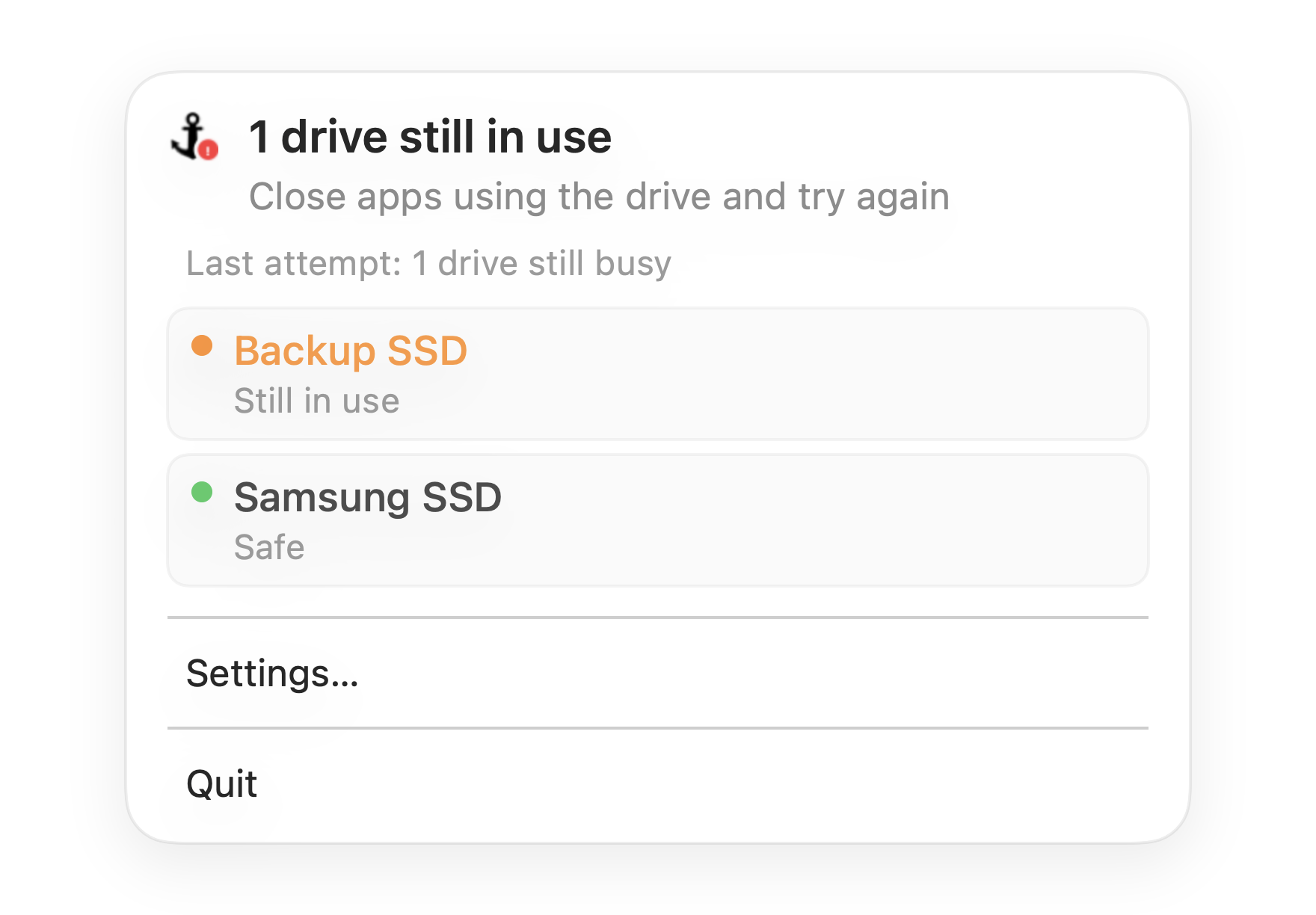
Dockhandy is designed for that exact gap. It watches the external drives you care about and shows whether they are safe before you close your Mac. If everything is idle, it stays quiet. If a drive still needs attention, it tells you before sleep turns into an unsafe disconnect.
Safe ejection is not about being paranoid. It is about making the final ten seconds of your workflow visible enough that you do not have to guess.