Blog
A Practical Checklist Before Closing Your Mac with an External SSD
A focused pre-sleep checklist for MacBook users with external SSDs, USB-C docks, Time Machine drives, and project storage.
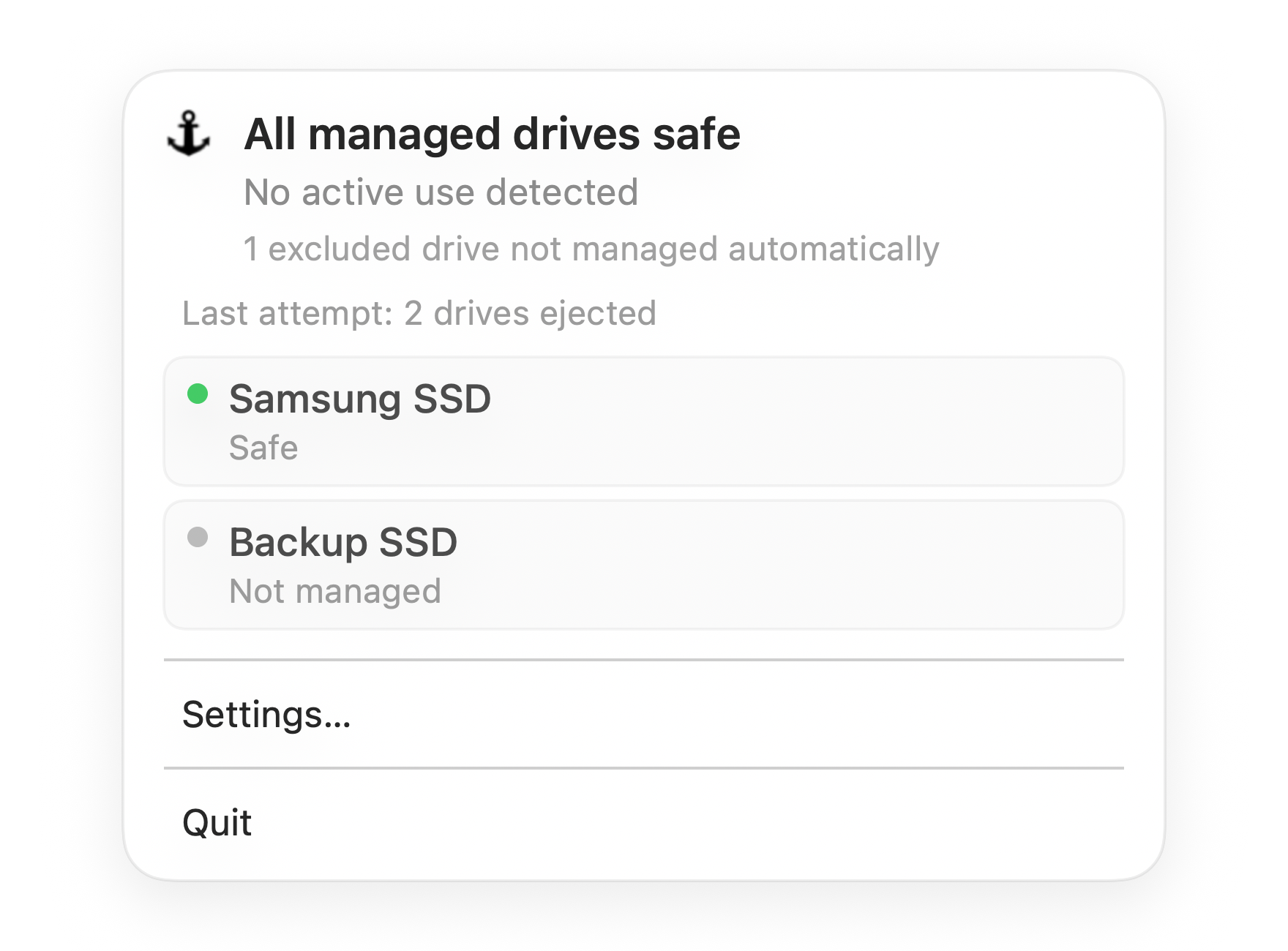
Default state
All managed drives safe
Everything Dockhandy is watching is ready. You can close your Mac with confidence.
Use this when you are about to close the lid
The riskiest external SSD moment is not the middle of a file copy. It is the end of the session, when you are moving quickly and want to close your MacBook.
If the SSD is still mounted, still writing, or connected through a dock that is about to lose power, macOS may later show "Disk Not Ejected Properly."
This checklist is meant for that exact moment. It is short enough to use, but specific enough to catch the common causes of unsafe disconnects.
The 60-second pre-sleep checklist
1. Are any file operations still active?
Look for Finder copy windows, export progress bars, archive tools, backup tools, or app saves. If something is still running, wait.
Also be careful right after a large copy appears to finish. The progress window may disappear before every cached write is fully flushed to the drive.
2. Is an app still using the SSD?
Close files, projects, libraries, or folders opened from the SSD. Common examples:
- Final Cut Pro, DaVinci Resolve, Premiere Pro, Logic, or Ableton projects
- Lightroom, Photos, or media libraries
- Code editors with a project opened from the drive
- Preview or Quick Look windows
- Terminal sessions inside
/Volumes/... - Virtual machines or disk images stored on the SSD
If Finder says the disk is in use when you try to eject, an app like this is often the reason.
3. Is Time Machine, Spotlight, or sync still touching the drive?
External SSDs can be active even when no app window is obvious.
Check Time Machine if the drive is a backup volume. Be aware of Spotlight indexing after large imports or after connecting a drive that has not been used recently. If you store synced folders on the SSD, check Dropbox, OneDrive, iCloud Drive, or similar tools.
4. Are you about to unplug a dock?
If the SSD is connected through a USB-C or Thunderbolt dock, do not treat the dock cable as the eject button. Eject the SSD first, wait for it to disappear from Finder, then unplug the dock.
This matters more when several devices share one dock. Pulling one cable can remove every attached volume at once.
5. Did Finder confirm the eject?
Clicking eject is not enough. Wait until the drive disappears from Finder's sidebar or from the desktop. That disappearance is the confirmation that macOS finished unmounting the volume.
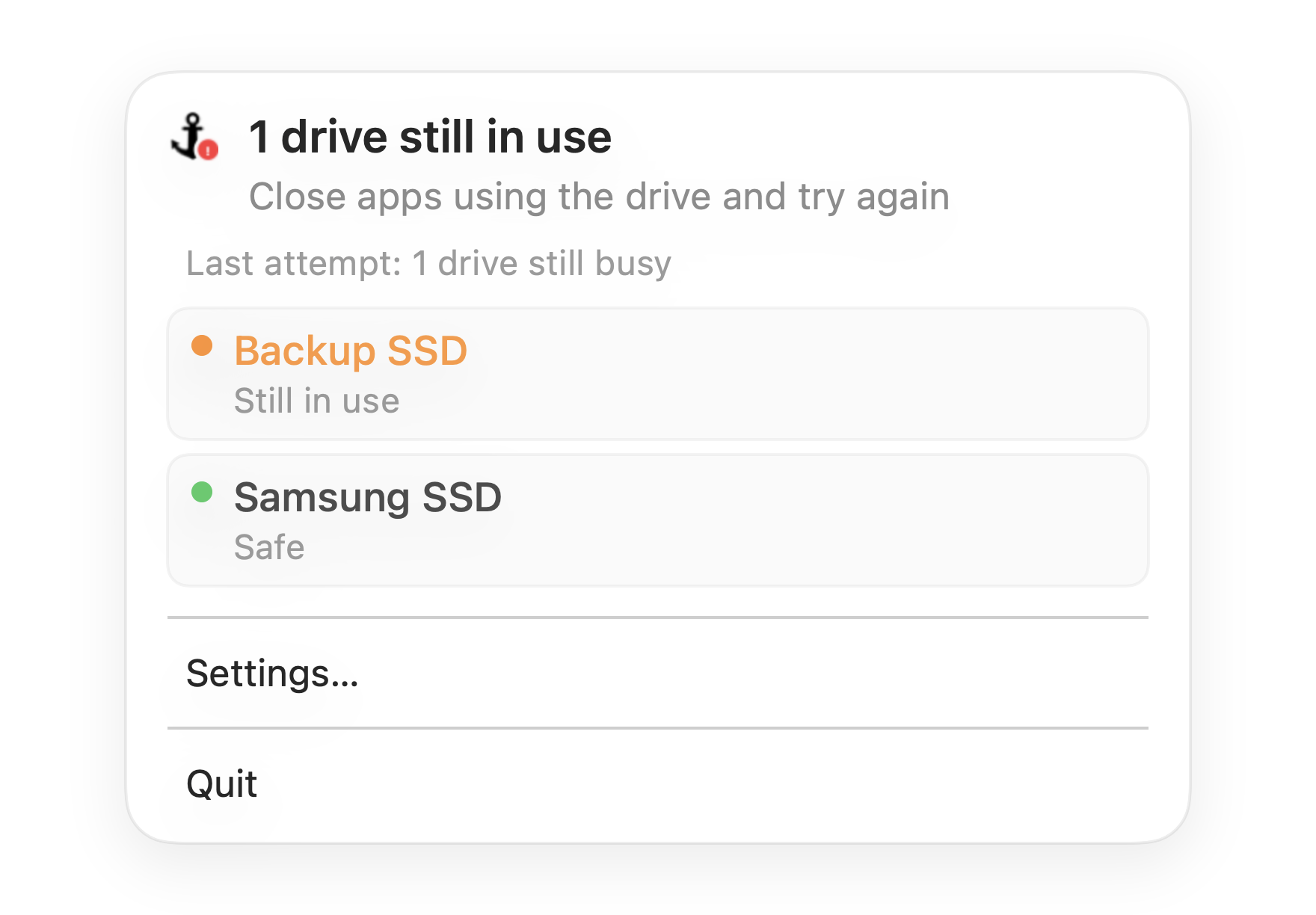
If the drive stays visible or macOS says it is in use, do not close the lid yet. Find the app or background task that is still holding it.
A simpler decision rule
If you do not want to run the full checklist every time, use this rule:
If you are going to physically disconnect the drive or dock, eject first. If you are leaving it connected, make sure no writes or backups are active before sleep.
That covers most cases.
For a desk setup where the SSD stays connected overnight, sleep is usually fine when the drive is idle and the connection is stable. For a mobile setup where you close the lid and pull one USB-C cable, clean eject matters much more.
What to do if the checklist fails
If the drive will not eject:
- Close Finder windows showing the drive.
- Close apps that opened files from the drive.
- Pause or wait for backups and sync tools.
- Try eject again.
- If needed, use Activity Monitor or
lsofto identify the process using the volume.
Do not make force eject your normal workflow. If the same app or dock repeatedly blocks safe eject, fix the pattern. Repeated unsafe disconnects are what turn a small warning into a real data safety issue.
The best checklist is the one you actually use
Detailed checklists are useful when something goes wrong. They are less useful when you are rushing out the door.
That is why the most important part of this workflow is visibility. You need a quick answer to one question: is it safe to close this Mac right now?
Dockhandy puts that answer in the menu bar. It monitors the external drives you choose and shows a safe state when they are idle. If a drive still needs attention, you see it before closing the lid or unplugging the dock.
The goal is not to make your Mac workflow heavier. It is to remove the guesswork from the final moment before sleep.