Blog
How to Safely Eject an External SSD or Hard Drive on Mac
Step-by-step ways to eject external SSDs and hard drives on Mac, what to check before unplugging, and how to handle drives that will not eject.
Default state
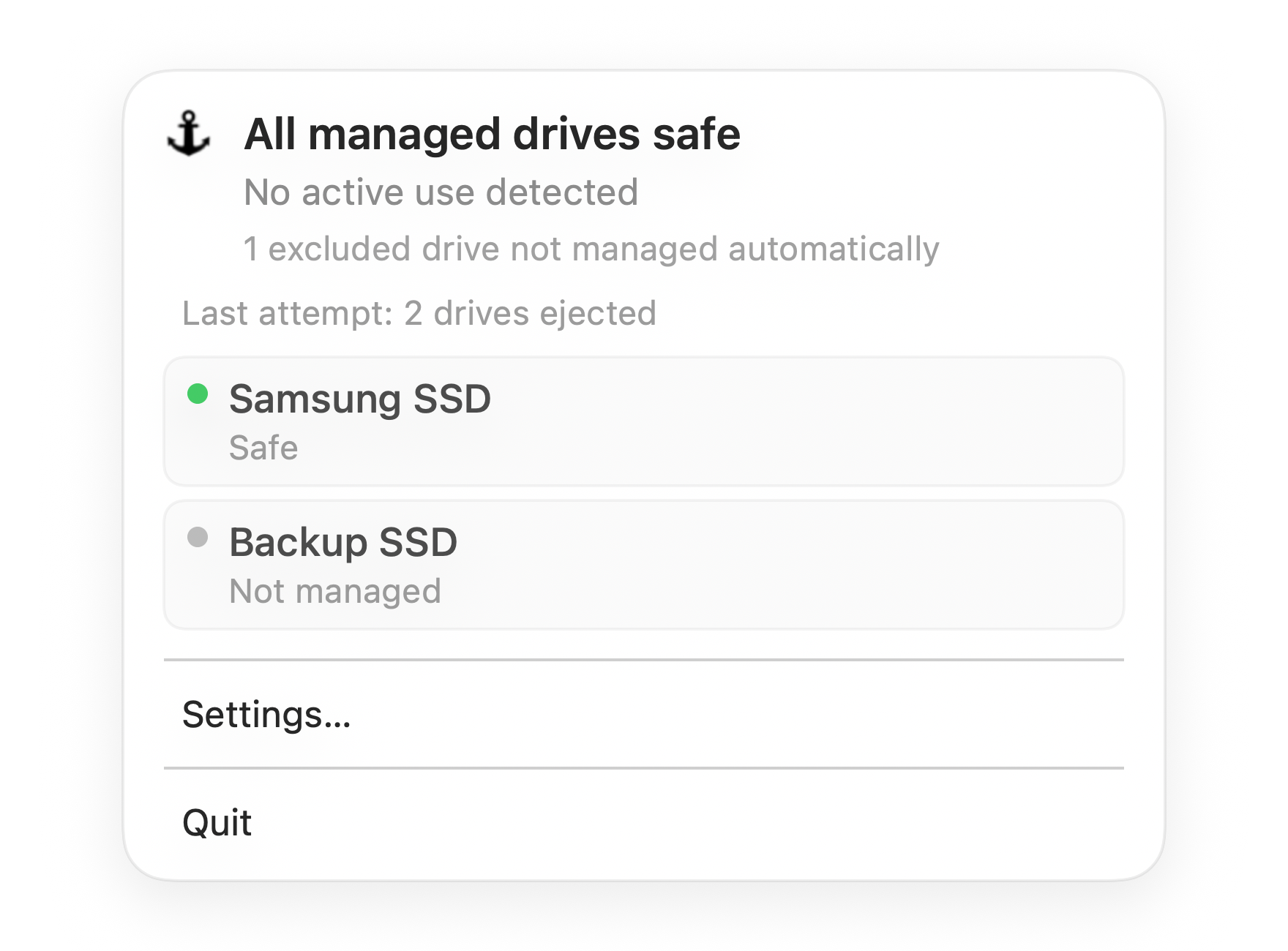
All managed drives safe
Everything Dockhandy is watching is ready. You can close your Mac with confidence.
The safe rule
Before you unplug an external SSD, hard drive, SD card, or USB storage device from a Mac, eject it first and wait until it disappears from Finder.
That one step gives macOS time to finish pending writes, close file system activity, and unmount the volume. If you remove the drive before that happens, macOS may show "Disk Not Ejected Properly" the next time it notices the disconnect.
The warning is not guaranteed data loss, but it is a real signal. The Mac lost contact with a mounted drive before the normal shutdown sequence completed.
The fastest safe way to eject a drive
Eject from Finder
- Open Finder.
- In the sidebar, find your drive under Locations.
- Click the eject icon next to the drive name.
- Wait until the drive disappears from the sidebar.
- Unplug the cable or remove the device.
The waiting step is important. A click is not confirmation. The drive disappearing from Finder is the confirmation.
Eject from the desktop
If drive icons appear on your desktop, Control-click the drive and choose Eject. Wait for the icon to disappear before unplugging.
Eject with the keyboard
Select the drive in Finder and press Command-E. This is the same unmount request as the Finder eject button.
Eject from Disk Utility
Open Disk Utility, select the mounted volume, and click Unmount. This is useful when Finder is not showing the drive clearly or when you want to inspect the volume at the same time.
What to check before ejecting
Safe ejection is easiest when the drive is idle. Before you eject, check for common activity:
- A Finder copy or move still running
- A video, audio, photo, or archive export
- A Time Machine backup
- Spotlight indexing on a newly connected drive
- A cloud sync app touching files on the drive
- An app with a project, document, media file, or library open from that volume
- A terminal session whose current directory is on the drive
You do not need to overthink this every time. The goal is to catch the obvious cases where the drive is still active.
If macOS says the disk is in use
Do not unplug immediately. The message usually means some process still has a file handle open on the drive.
Work through this order:
- Close files opened from the drive. Check Preview, Quick Look, editors, media apps, DAWs, design tools, and virtual machines.
- Close Finder windows showing the drive. Finder can keep a directory active while browsing or previewing files.
- Check backups and sync tools. Time Machine, Dropbox, OneDrive, iCloud Drive, and similar tools may still be writing metadata.
- Wait briefly and try again. Some background writes clear on their own.
- Use Activity Monitor or Terminal if needed. Advanced users can use
lsofto find processes using the mounted volume.
Force eject should be a last resort. It is better than physically yanking the cable in some cases, but it still means macOS could not complete the normal clean unmount path.
How to use lsof when you need detail
If the drive is mounted at /Volumes/ProjectSSD, this command can reveal processes with open files on it:
lsof | grep "/Volumes/ProjectSSD"
This is a diagnostic tool, not a command to run blindly. If you find an app using the drive, close the file or quit the app normally. Avoid killing processes unless you understand what they are doing and have saved your work.
What not to do
Do not unplug a hub before ejecting the volumes
If three drives are connected through one USB-C dock, pulling the dock cable disconnects all three at once. Eject each mounted volume first, then unplug the dock.
Do not assume a finished progress bar means all writes are done
The visible copy may be finished while macOS still flushes cached writes. Waiting a few extra seconds after large transfers is cheap insurance.
Do not close the MacBook lid while guessing
If the drive is still mounted and active, sleep can interrupt it. This is one of the most common paths to a "Disk Not Ejected Properly" warning.
Do not ignore repeated warnings
One warning after an obvious mistake is usually not a crisis. Repeated warnings point to a workflow, cable, dock, or drive problem that deserves attention.
Is APFS safer than exFAT?
For Mac-only use, APFS is usually the better choice. It is designed for modern macOS and handles many interrupted operations more gracefully.
exFAT is useful when you need to move the same drive between Mac and Windows, cameras, or other devices. The tradeoff is that you should be more careful about clean ejection, especially after writes.
No file system makes unsafe disconnects harmless. A resilient file system reduces risk; it does not remove the need to eject.
A simple end-of-session routine
When you are about to leave your desk:
- Finish active copies, exports, and backups.
- Close apps using files on external drives.
- Eject each external volume in Finder.
- Wait for each drive to disappear.
- Unplug the drive or dock.
That is the manual gold standard. The only problem is remembering it every time.
Make the unsafe moment visible
Most unsafe disconnects are not caused by people who do not know the rule. They are caused by timing. You are closing the lid, packing up, or unplugging a dock, and you cannot quickly tell whether a drive is still busy.
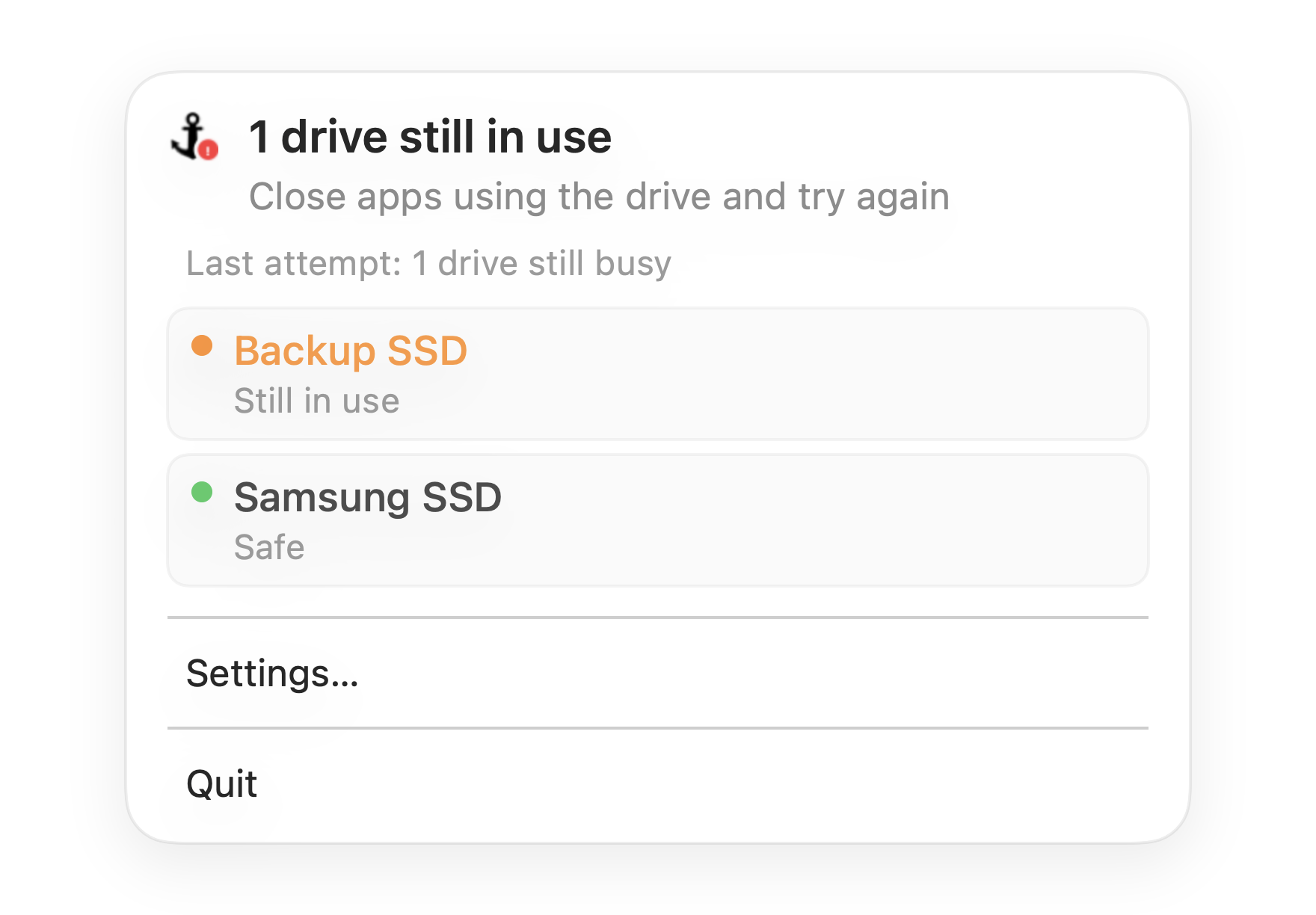
Dockhandy gives that moment a clear signal. It monitors the external drives you choose and shows whether they are safe before you close your Mac. When everything is idle, you see the all-clear. When a drive still needs attention, you see it before the cable comes out or the Mac goes to sleep.
Safe ejection should not require guesswork. It should be obvious at the moment you are about to disconnect.