Blog
What 'Disk Not Ejected Properly' Means on Mac and What to Do Next
A practical guide to the macOS 'Disk Not Ejected Properly' warning: what caused it, when your files are at risk, and how to prevent it from happening again.
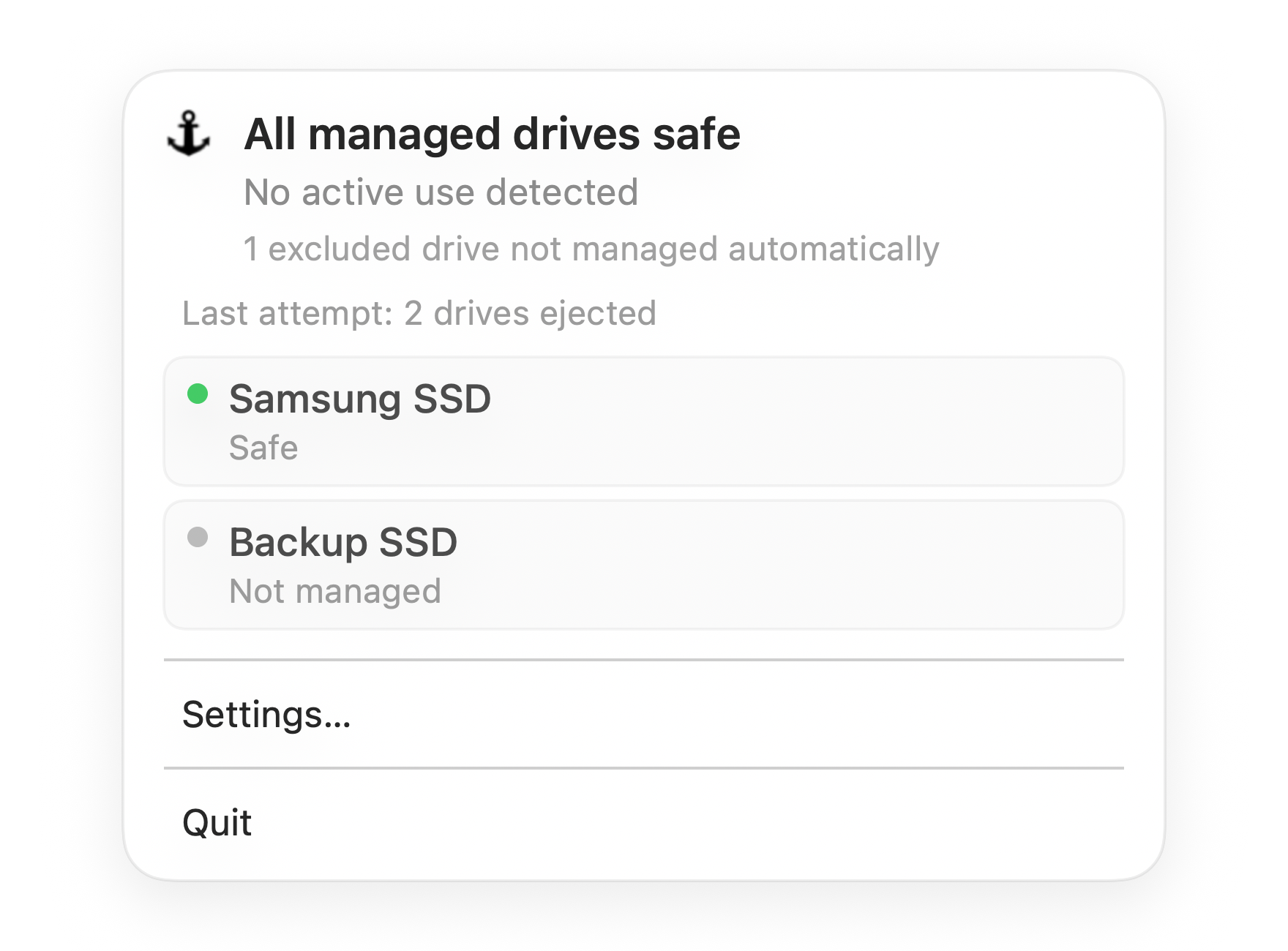
Default state
All managed drives safe
Everything Dockhandy is watching is ready. You can close your Mac with confidence.
First: the warning is not just cosmetic
The macOS message "Disk Not Ejected Properly" means the Mac lost contact with an external drive before the volume was cleanly unmounted. The drive may have been unplugged, a dock may have lost power, or your Mac may have gone to sleep while the drive was still mounted.
Most of the time, nothing obvious breaks. You dismiss the notification, open the drive again, and your files appear to be there. That is why the warning is easy to ignore.
But the warning is still worth taking seriously. It means macOS did not get the normal chance to finish pending writes, release file handles, and confirm that the file system was in a safe state before the connection disappeared.
What actually happened
When an external SSD or hard drive is mounted, macOS may be doing more than showing files in Finder. It can be writing metadata, flushing cached file changes, updating Spotlight indexes, writing Time Machine snapshots, or letting another app keep files open on that volume.
A clean eject does three important things:
- It asks apps and system services to stop using the volume.
- It writes pending changes to the drive.
- It unmounts the file system so the physical connection can be removed safely.
The warning appears when the physical connection disappears before that sequence completes.
This does not automatically mean the drive is damaged. Modern file systems such as APFS are designed to recover from many interrupted writes. The risk is highest when the disconnect happens during an active write, a backup, a media export, a large copy, or a file system metadata update.
Common causes on real Mac setups
Closing a MacBook with the drive still connected
This is the classic case. You finish work, close the lid, and put the Mac in a bag or leave the desk. During sleep, power and device state change quickly. If a drive is still mounted and busy, macOS may not get a clean unmount window before the USB or Thunderbolt connection drops.
Pulling a USB-C dock or hub
Disconnecting one dock can instantly disconnect several volumes. If any drive on that dock was still mounted, macOS sees each one as an unclean disconnect. This is especially common with desk setups that combine charging, display output, card readers, backup drives, and project SSDs through one cable.
A drive or cable losing power
Bus-powered drives depend on a stable USB connection. A loose cable, underpowered hub, or dock power transition can make the drive disappear even if you never touched Finder.
Time Machine, Spotlight, or cloud sync still running
The drive may look idle while a background process is still using it. Time Machine backups, Spotlight indexing, Dropbox, OneDrive, iCloud Drive, media libraries, and photo/video tools can all keep a volume active after the visible file copy has finished.
What to do immediately after the warning
If you see the warning once, do not panic. Use this sequence:
- Reconnect the drive directly if possible. Avoid the dock for the first check if you suspect the dock or hub caused the disconnect.
- Open the drive in Finder and check the newest files first. Look at the files you were copying, exporting, or editing near the time of the warning.
- Run Disk Utility First Aid. Select the volume and run First Aid. If it reports errors, stop using the drive for new work until you have backed up the contents.
- Back up important files before continuing. If the drive contains original project files, make a second copy before you keep working from it.
- Watch whether the warning repeats. One warning after a rushed disconnect is different from repeated warnings after every sleep or wake.
If the drive does not mount, makes unusual sounds, repeatedly disconnects, or First Aid reports serious errors, treat it as a data protection problem rather than a convenience problem.
When should you worry?
A single warning after a known accidental unplug is usually low risk. The drive was disconnected incorrectly, but APFS or another journaling file system often recovers cleanly.
You should take it more seriously when:
- The warning appears repeatedly after sleep or wake.
- The warning appears even when you did not touch the cable.
- A Time Machine backup was running.
- A large copy, export, render, or archive was in progress.
- Finder is slow to open the volume afterward.
- Disk Utility reports repair errors.
- Files created near the disconnect time are missing, zero bytes, or will not open.
The pattern matters. Repeated unclean disconnects are a signal that your workflow, dock, cable, or sleep behavior needs attention.
How to prevent it
Eject before removing hardware
In Finder, click the eject icon next to the drive under Locations, then wait until the drive disappears from the sidebar. Only then unplug the drive, dock, or hub.
If you use several drives through one dock, eject each volume first. Pulling the dock cable is not the same as ejecting all volumes.
Avoid closing the lid during active work
Before closing a MacBook, check whether any of these are happening:
- Finder copy or move operation
- Time Machine backup
- Video, audio, or photo export
- App project save or cache write
- Cloud sync on folders stored on the drive
- Spotlight indexing on a newly connected volume
If any of those are active, wait or eject first.
Prefer stable connections
Use a reliable cable, avoid loose adapters, and connect important drives directly to the Mac when possible. If you rely on a dock, a powered dock is usually more stable than a chain of small adapters.
Use a Mac-native file system when you can
For drives used mainly on Mac, APFS is usually the better default than exFAT. exFAT is useful for cross-platform compatibility, but it is less forgiving when writes are interrupted.
The problem is usually visibility, not knowledge
Most people already know they should eject external drives. The failure happens at the end of the work session, when you are about to close the lid and leave. You do not want to inspect every app, every backup, and every background process. You just want to know whether the Mac is safe to close.
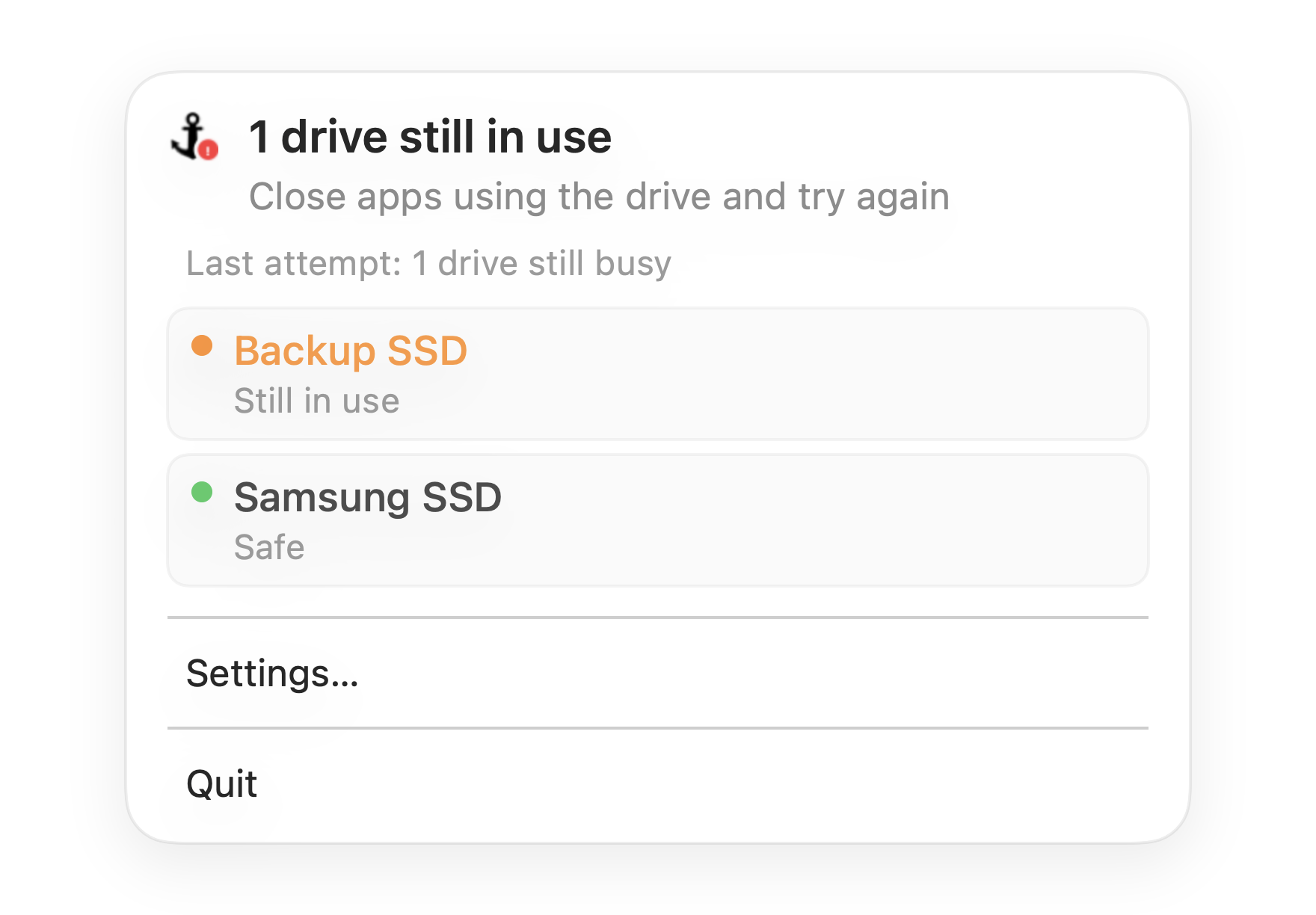
Dockhandy is built around that moment. It sits in the macOS menu bar, watches the external drives you choose, and gives you a clear state before sleep. If the managed drives are idle, you can close your Mac with confidence. If one still needs attention, you see that before the disconnect happens.
The goal is not to make drive management more complicated. It is to make the unsafe moment visible before it turns into another "Disk Not Ejected Properly" warning.